CMP Notification Panel
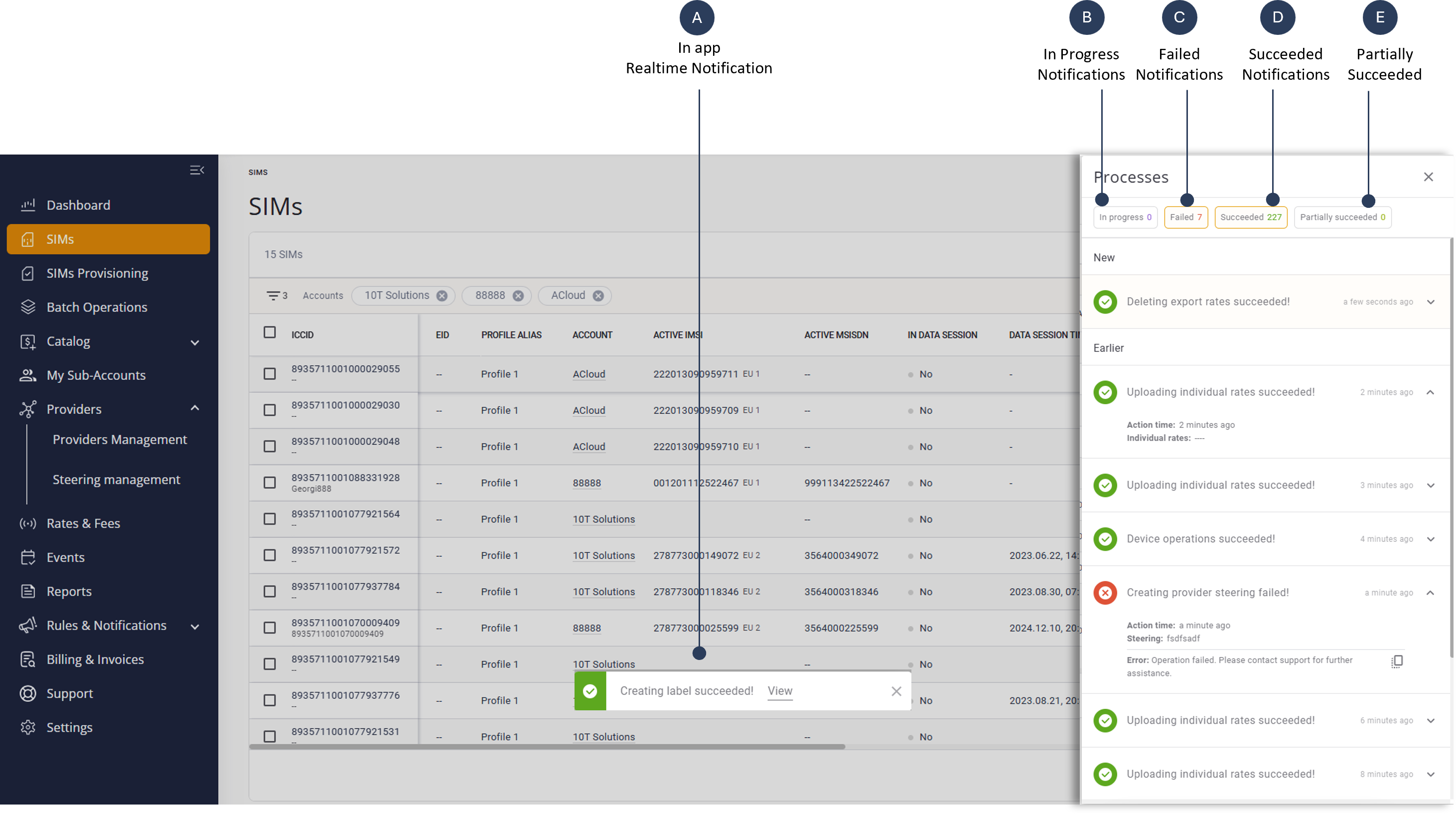
The CMP Notification Panel offers a quick view of all system processes. This panel helps users to understand the status of each action and guides troubleshooting when necessary.
Functional Description
The CMP Connectivity Portal provides real-time feedback on various processes through clearly labelled notifications. These notifications enable you to:
- Identify the status of actions at a glance to save time and reduce confusion.
- Respond promptly to errors or failures by knowing when to seek support or retry an action.
- Monitor ongoing processes to ensure tasks are progressing as expected.
- Understand partial successes, enabling users to take corrective measures if necessary.
Notification Types
A description of the notification types is shown here.
| Icon | Status | Description |
|---|---|---|

|
Succeeded | Indicates the process is complete without any errors. Information includes time of action and details of applicable entity. |

|
Failed | Signifies the process was unable to complete due to an error. Information includes time of action and details of applicable entity. |

|
In Progress | Shows the process is ongoing and is not yet finished. Information includes time of action and details of applicable entity. |

|
Partially Succeeded | Relevant mainly for bulk operations when some parts of the process are successful, while others may have failed or require further attention. |
A screen capture of the CMP Notification Panelk is shown here.
View Notifications
To view notifications in the CMP portal, do these steps:
- Go to the top bar and click the Clock icon to display the Notification panel.
- Select one of these Notification Categories (Optional):
- In Progress
- Succeeded
- Failed
- Partially Succeeded
- Scroll the list of notifications and click the Expand icon to display the notification details.
- Select a different category to filter the list of notifications.
TIP: You can use the Copy to Clipboard button to copy the error message